
 How-to
How Do You Use WordPress With cPanel?
Last Updated: October 26, 2026
Quick Summary
You use wordpress cpanel together by keeping each job in its own interface: write posts and manage plugins in the WordPress dashboard, and handle files, databases, email, SSL and backups in cPanel. cPanel cannot log you into WordPress directly, but its app installer and phpMyAdmin let you reach or reset dashboard access.
- Content lives in WordPress, infrastructure lives in cPanel, and mixing the two is the biggest source of confusion.
- The app installer in cPanel provides a login link that jumps you into the WordPress dashboard.
- You can reset a WordPress password through phpMyAdmin by editing the password field in the wp_users table.
- The cPanel File Manager reaches wp-config.php and plugin folders without FTP when the dashboard is down.
- Folders should be set to 755 and files to 644, and anything at 777 is a risk.
Table of Contents
- WordPress vs cPanel: What's the Difference?
- How to Log In to WordPress From cPanel
- Using the WordPress File Manager in cPanel
- Frequently Asked Questions
WordPress vs cPanel: What's the Difference?
WordPress is the content management system where you write posts and manage content. cPanel is the hosting control panel where you manage the server: files, databases, email and backups. They are separate tools that work together, and mixing up WordPress cPanel is the biggest source of confusion we see at WP Clinic Australia.
Many people log into cPanel expecting their posts to appear, or hunt for a database tool inside WordPress. Knowing which interface holds which job saves hours.
- cPanel: files, databases, email, SSL, backups, app installer
- WordPress dashboard: posts, pages, plugins, themes, users, settings
- Rule of thumb: content in WordPress, infrastructure in cPanel
The two interfaces split the work cleanly, and knowing which job lives where is the whole trick.
| Tool | What you manage there |
|---|---|
| cPanel | Files, databases, email, SSL, backups, app installer |
| WordPress dashboard | Posts, pages, plugins, themes, users, settings |
| Rule of thumb | Content in WordPress, infrastructure in cPanel |
How to Log In to WordPress From cPanel
You cannot log in to WordPress directly from cPanel, but cPanel gives you tools to reset access or reach the dashboard. Two routes:
Route 1: Use the app installer. Open Softaculous or your host's app installer inside cPanel, find the WordPress installation, and use its login link to jump into the dashboard. For more step-by-step guides on common WordPress tasks, see how-to articles from WP Clinic Australia.
Route 2: Reset the password via the database. Open phpMyAdmin from cPanel, select your WordPress database, open the wp_users table, and edit the password field with a newly generated hash.
Watch out: editing the database directly can lock you out if you touch the wrong table. Take a cPanel database backup first.
Using the WordPress File Manager in cPanel
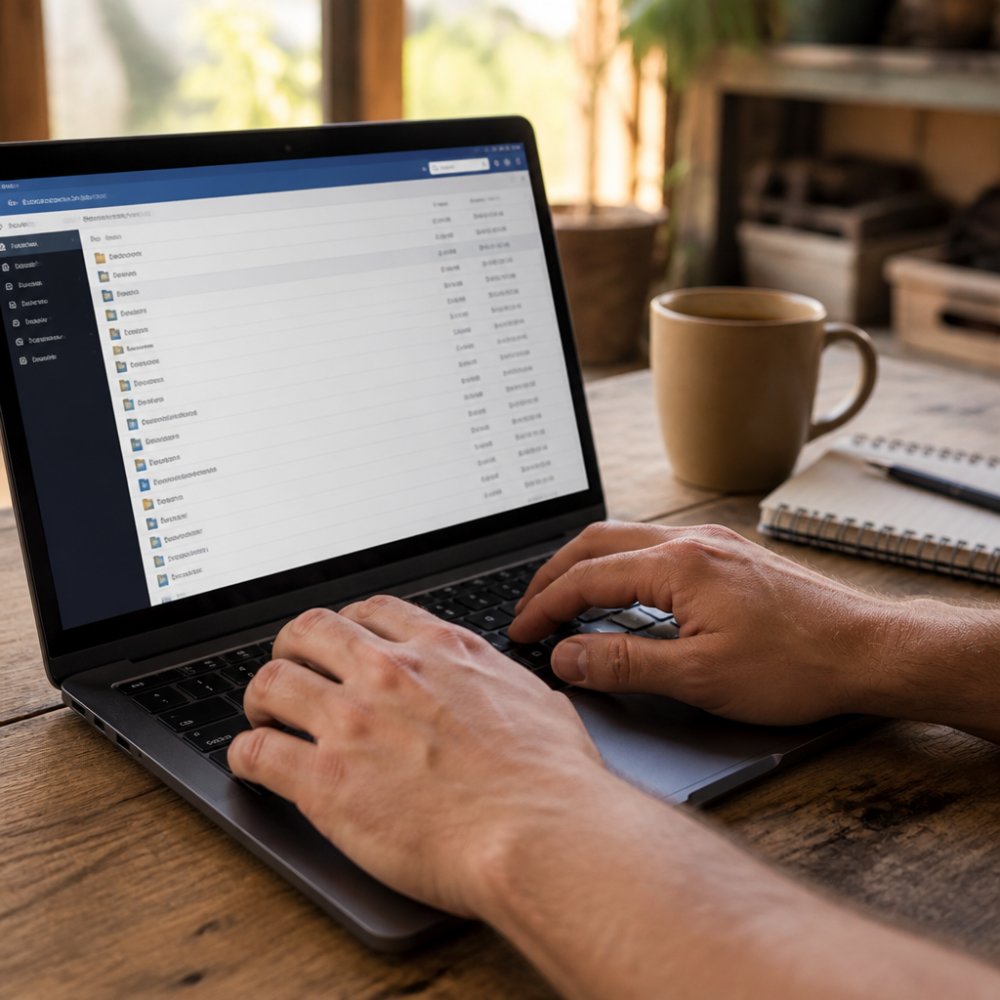
The WordPress cPanel File Manager is a browser-based tool for viewing and editing website files without FTP, and the fastest way to reach wp-config.php, plugin folders and uploads when the dashboard is unavailable. Managing these core files manually provides a foundation for more advanced site optimizations, such as using AI in WordPress to streamline your editorial workflow.
Common jobs include disabling a broken plugin by renaming its folder, restoring a file from backup, and checking permissions: folders should be 755 and files 644, and anything set to 777 is a risk.
A common mistake is editing theme files live in File Manager with no backup; one stray character can white-screen the site. For broader guidance on keeping your site in shape, read How to WordPress Maintenance. Download the file, edit locally, then upload.
Best for: quick file-level fixes when the dashboard is down. Skip if: you are unsure which file to touch. If server-side fixes like these keep piling up, Hosting, daily backups & full coverage can take the maintenance and recovery work off your plate, and WordPress Security & Maintenance Essentials covers the routine checks that stop small file issues from becoming outages.
Frequently Asked Questions
What is the difference between WordPress and cPanel?
WordPress is the content management system that runs your site, while cPanel is the hosting control panel provided by your hosting provider. cPanel manages the server environment, including files, databases, email and backups. WordPress manages your content, pages and plugins. You use cPanel to install or repair WordPress, and you use the WordPress dashboard to write posts and manage your site day to day.
How do I log in to WordPress from cPanel?
Log in to your cPanel account using the credentials from your hosting provider. Look for the WordPress or Softaculous icon, then open the installer and find your installation. Most installers include a login link that takes you straight to the WordPress dashboard without entering a separate password. If that link is missing, use the file manager to reset your WordPress password manually.
Is cPanel included with WordPress hosting?
Not always. Many shared and managed WordPress hosting plans include cPanel or a similar control panel, but some managed hosts use their own custom dashboards instead. Check your hosting plan details before signing up. If you need cPanel specifically for file access, database management or manual backups, confirm it is included. If your host does not provide cPanel, you can still manage WordPress through the dashboard and FTP.
Locked out of your WordPress dashboard or unsure which cPanel file is safe to edit? WP Clinic Australia handles this work for Australian small businesses, with 24/7 availability including 1am emergency support, daily backups and monitoring, and no lock-in contracts. Get started with WP Clinic Australia and keep your site secure, fast and online.